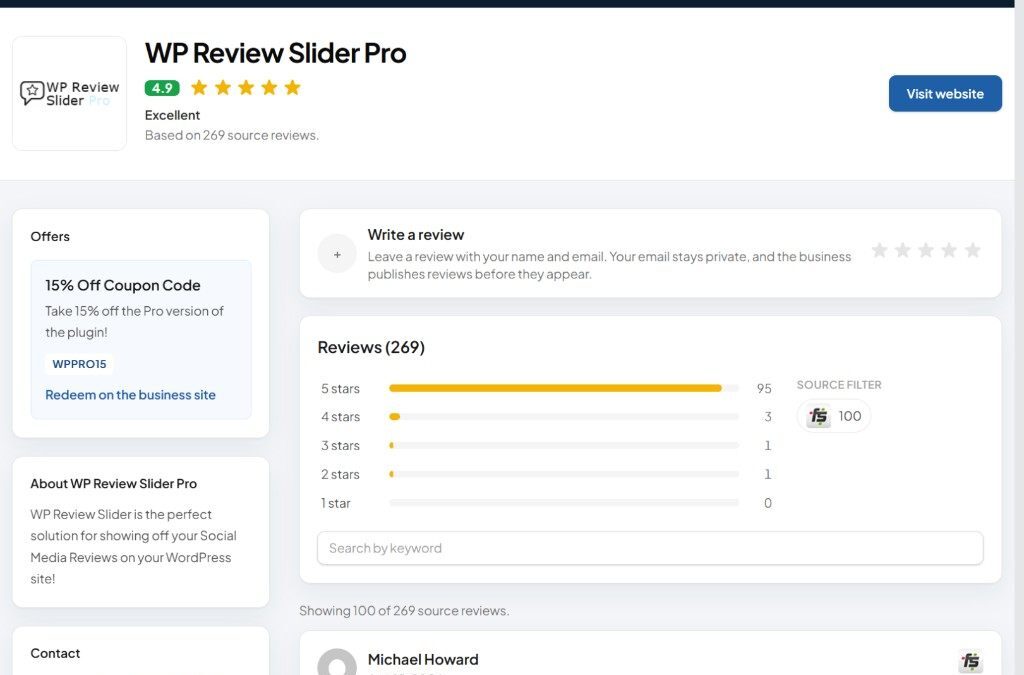
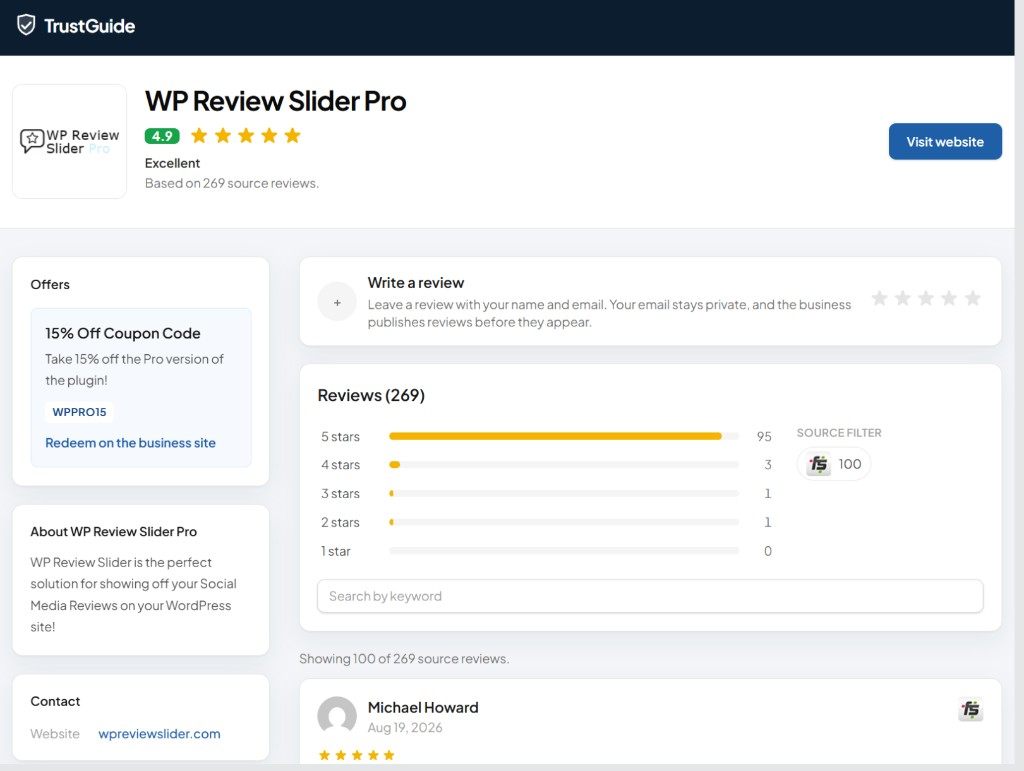
Connect TrustGuide in WP Review Slider Pro to publish a public reputation page from the reviews you already collect. The page is hosted on trustguide.us, so it does not add that load to your WordPress site.
This feature shipped in WP Review Slider Pro 12.7.12. Open WP Review Slider Pro → TrustGuide. Setup is three steps: link the site, approve the connection, then choose locations and sync.
Shopping for this feature? See the TrustGuide Public Review Profile feature page for what a published profile includes.
- Pair first, send reviews later. Start Pairing opens a secure connection. No reviews, passwords, or customer data are sent yet.
- Approve it in TrustGuide. Log in or create a free account, then approve this WordPress site. Leave the plugin page open so WordPress can finish connecting.
- Publish the profile you already have. Choose locations, save, and sync. You do not rebuild your review library.
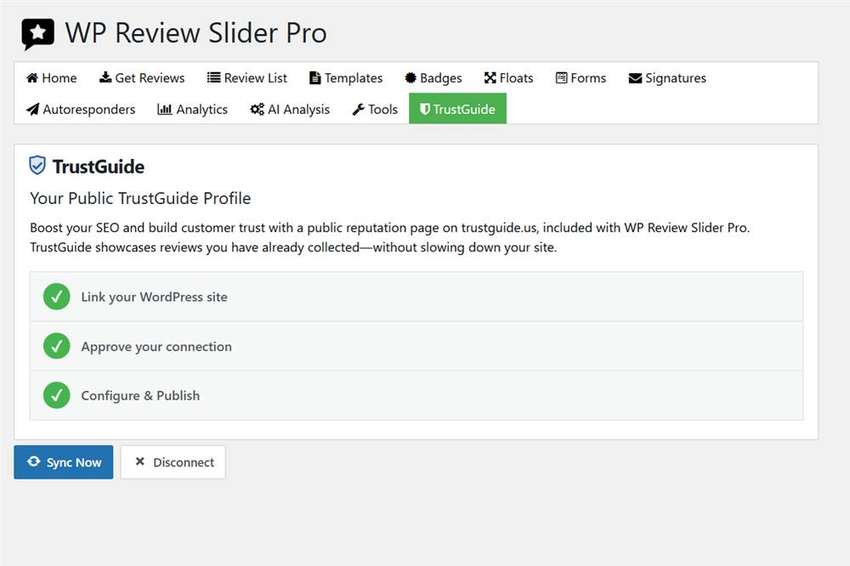
Link your WordPress site
On the TrustGuide tab, click Start Pairing. That starts the secure connection to trustguide.us. If TrustGuide later rejects a saved connection, use Relink this site and approve it again.
Most sites can ignore the advanced section. Open it only for a staging TrustGuide URL, or if you were given a connection ID and secret to paste in with Save Credentials.
Approve the TrustGuide connection
Click Approve on TrustGuide. Log in or create a free TrustGuide account, then approve this WordPress site. Leave the plugin page open. WordPress checks the approval and connects automatically after you approve it.
The approval link expires. If it lapses, click Get a New Code. If the page is still waiting, click Check Status.
Choose locations and sync
After the site is connected, step 3 is Configure & Publish.
- Turn on Keep my TrustGuide profile updated automatically.
- Set the sync frequency to Every day, or to Only when I click Sync Now.
- Under Locations, check the review sources that should appear on the public profile. Leave every box unchecked to include all visible reviews.
Hidden reviews and translations are never sent. If no locations are listed, download reviews on the Get Reviews page first. Click Save Settings, then Sync Now. The snapshot is queued and delivered in the background. The public profile link appears after the first successful sync. Use View Public Profile to open it.
Disconnect removes the WordPress connection and clears pending local deliveries. WordPress asks you to confirm before it does that.
Frequently asked questions
Do I have to import my reviews again for TrustGuide?
No. TrustGuide uses the reviews already stored in WP Review Slider Pro. Download them on Get Reviews first if the location list is empty.
When does the public TrustGuide link show up?
After the first successful sync. Until then, the TrustGuide tab says the public profile link will appear there once that sync finishes.
What gets left out of the snapshot?
Hidden reviews and translations are never sent. If you check specific locations, only those locations are included. If you leave every location unchecked, all visible reviews are included.
This walkthrough is part of What’s New in WP Review Slider Pro 12.7.12. Update from your WordPress dashboard, then open the TrustGuide tab. TrustGuide sync is included with every license; compare plans on the WP Review Slider Pro pricing page.