A Google Place ID is the string of letters and numbers, usually starting with ChIJ, that identifies one business or location on Google Maps. The fastest way to get yours is Google’s Place ID Finder. If the Finder cannot find you, which happens often for service area businesses with no street address, you can pull the ID out of a Google search result page in about 30 seconds. Both methods are below, plus a third for stubborn listings and what to do with the ID once you have it.
Most people who land here need the Place ID for one reason: to import their Google reviews into WordPress with WP Review Slider Pro. If that is you, grab the ID with Method 1 or 2, then jump to how to import your Google reviews.
Method 1: Find your Google Place ID from a Google search
This works even if your business has no physical address.
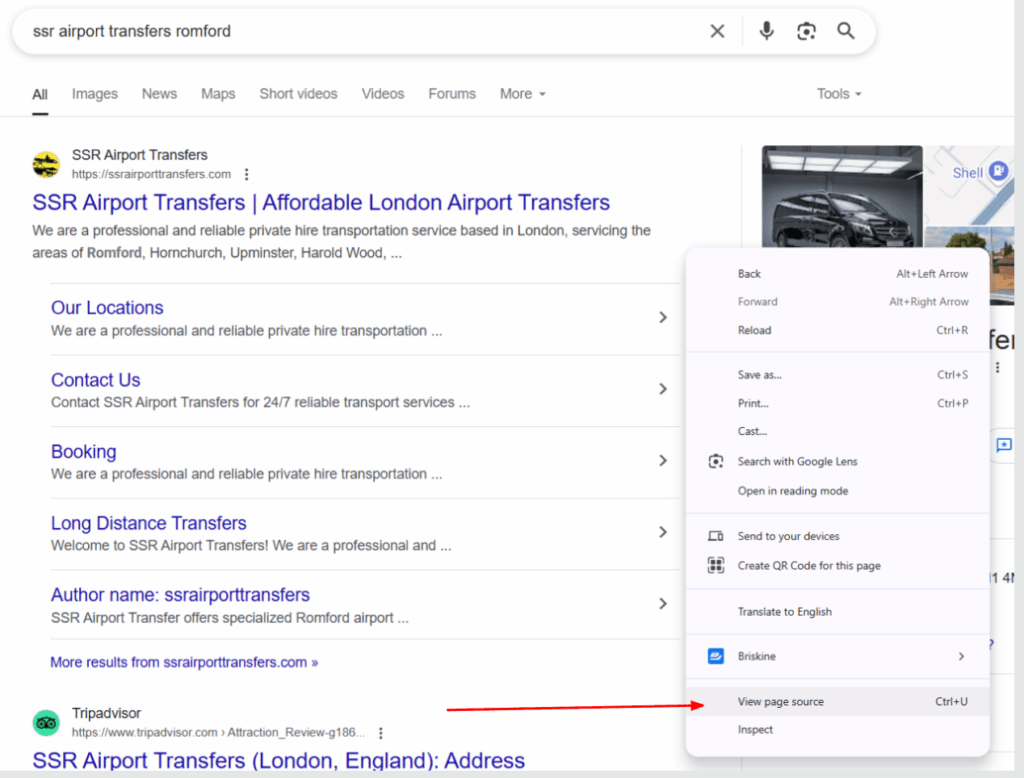
- Open Chrome or Firefox and search Google for your business name. Make sure your Business Profile panel shows on the right side of the results.
- Right-click the page and choose View page source.
- Press Ctrl + F (Cmd + F on a Mac) and search the source for lu-rap-thank-you-dialog.
- The value right after that text is your Place ID. It starts with ChIJ.
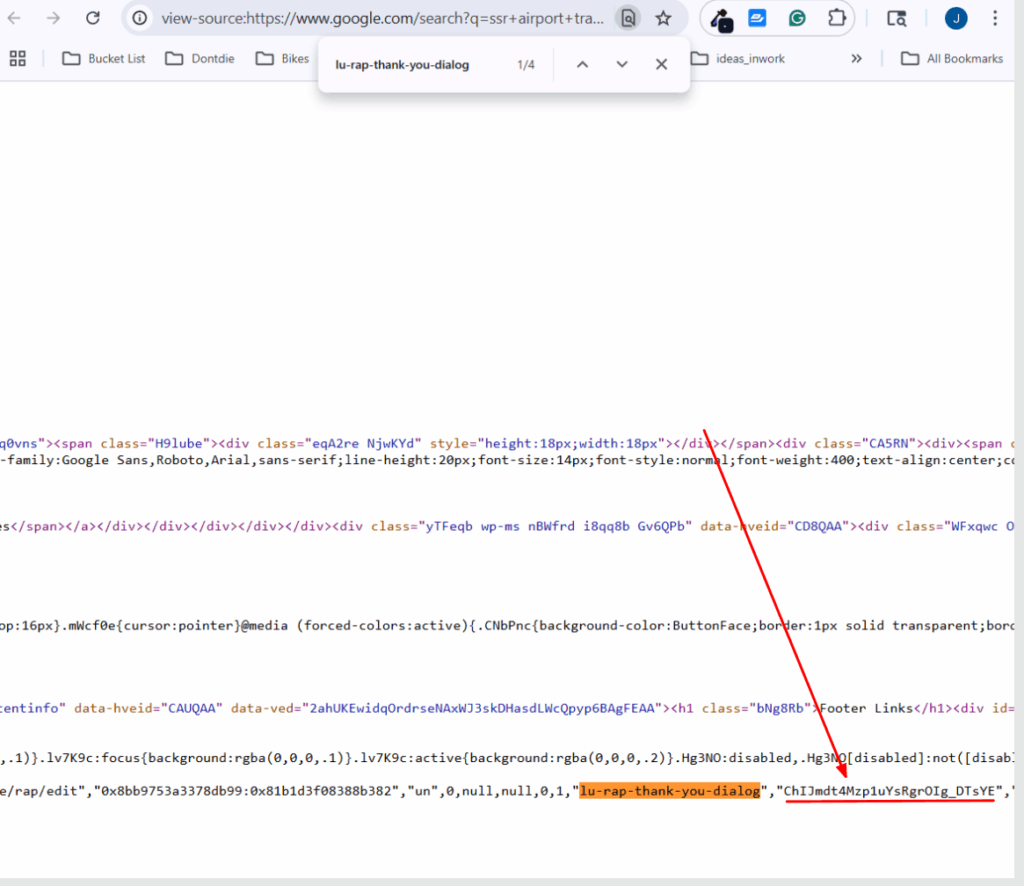
Your ID will be unique to your listing. I have used this method many times when the Finder tool came up empty.
Got your Place ID? Show your Google reviews on your WordPress site
Paste the Place ID into WP Review Slider Pro and it downloads your Google reviews into your own WordPress database, keeps them updated on a schedule, and displays them in a slider, grid, or star-rating badge. No Google API key is needed for the standard download. Plans start at $29 per year with a free 7-day trial and a 30-day money-back guarantee.
Method 2: Use Google’s Place ID Finder tool
- Open the Google Place ID Finder.
- Type your business name or address into the search box on the map and pick your listing from the suggestions.
- Copy the Place ID shown in the info window.
The Finder is the quickest option when it works. It does not list every business, especially service area businesses, so if yours does not come up use Method 1 or the bonus method below.
Bonus method: Pull the Place ID from the Google Maps review pop-up
If your business does not show in a Google search but you can still find it on Google Maps, do this:
- Open the location in Google Maps.
- Click the Write a review button in the left panel.
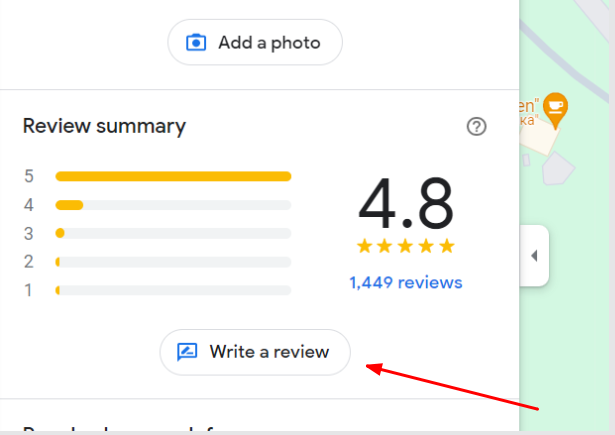
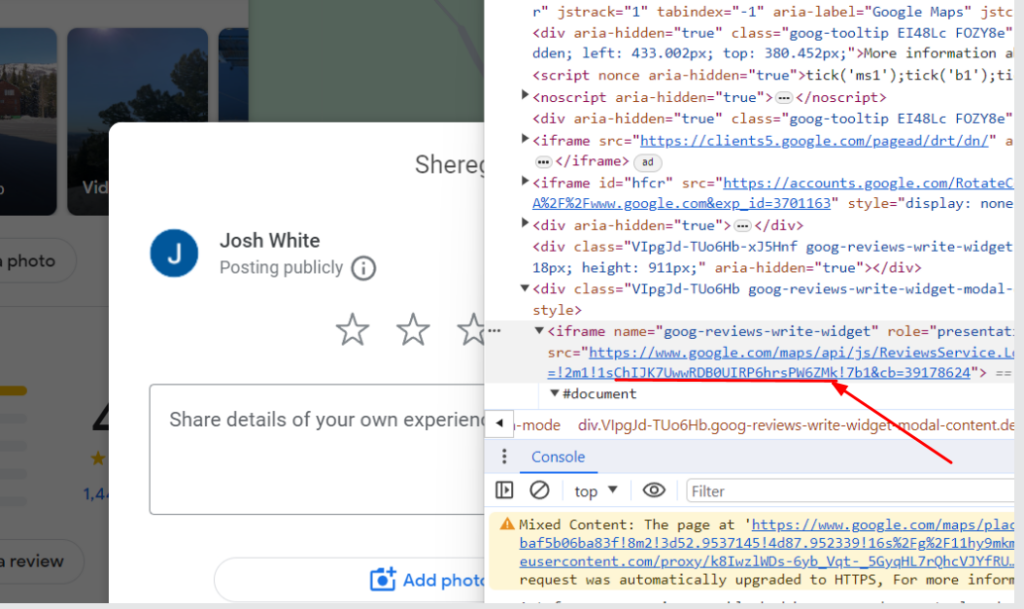
- A review pop-up opens. Right-click inside it and choose Inspect.
- Find the src of the pop-up’s iframe. The Place ID is inside it: it starts with ChIJ and ends before the ! character. In the screenshot below the Place ID is ChIJK7UwwRDB0UIRP6hrsPW6ZMk.
Still stuck? Some customers have had success with the Chrome extension GMB Everywhere, which shows the Place ID on top of Google Maps.
How to use your Place ID to import Google reviews into WordPress
Once you have the ID, WP Review Slider Pro can download the reviews for that location and keep them current. The steps in the plugin are:
- In your WordPress admin, open WP Review Slider Pro → Get Reviews and click Add Review Source Site.
- Pick Google. Choose Google Crawl (no API key needed) or Google Places API if you prefer to use your own key.
- Paste the Place ID into the Place ID or Search Terms field and give the location a unique name so multiple locations stay separate.
- Click Save & Test, then download. The Google Crawl method pulls roughly 50 reviews per location, including reviewer photos.
- Set Auto Update (days) so new reviews are fetched automatically, then add a review template or badge shortcode to any page.
The full walkthrough with screenshots is in How to Show Google Reviews on WordPress. If you have many locations, you can add each Place ID as its own source and show them together or separately.
Create a direct “review us” link with your Place ID
The Place ID also lets you build a link that opens Google’s review form for your business in one click, which works for service area businesses too. See How to Create a Direct Google Review Link & QR Code.
What is a Google Place ID?
A Google Place ID is a unique identifier Google assigns to every place in its database: businesses, landmarks, addresses, and points of interest. It is a text string, typically 27 characters that begins with ChIJ, and it is the value Google’s own tools and APIs use to refer to a specific location. A business with several locations has a separate Place ID for each one.
Why does a Place ID matter?
- Importing reviews. Review plugins and the Google Places API use the Place ID to know exactly which listing’s reviews to fetch.
- Review links. A service area business without an address can still send customers a direct “leave us a review” link.
- Maps and directories. Custom maps, directory sites, and booking tools use the ID to embed the right location.
Google Place ID FAQ
Does a service area business have a Place ID?
Yes. Every Google Business Profile has a Place ID even if the address is hidden. The Finder tool often cannot locate these listings, so use Method 1 (page source) or the Maps review pop-up method.
Can a Place ID change?
Occasionally. Google says Place IDs can be refreshed over time, for example after a listing is merged or moved. If a review import that used to work suddenly returns nothing, look up the ID again and update the source.
Do I need a Google API key to use my Place ID?
Not with WP Review Slider Pro’s Google Crawl method, which only needs the Place ID or your business name and city. The Google Places API method does need a key; if you want to go that route, see how to get a free Google Places API key.
Is the Place ID the same as my CID or Maps URL?
No. The CID is a long number that appears in some Google Maps links, and a Maps URL contains coordinates and other data. The Place ID is the ChIJ string. Review tools generally ask for the Place ID.
Ready to put those reviews to work? Start a free 7-day trial of WP Review Slider Pro, paste in your Place ID, and your Google reviews will be live on your WordPress site in a few minutes.