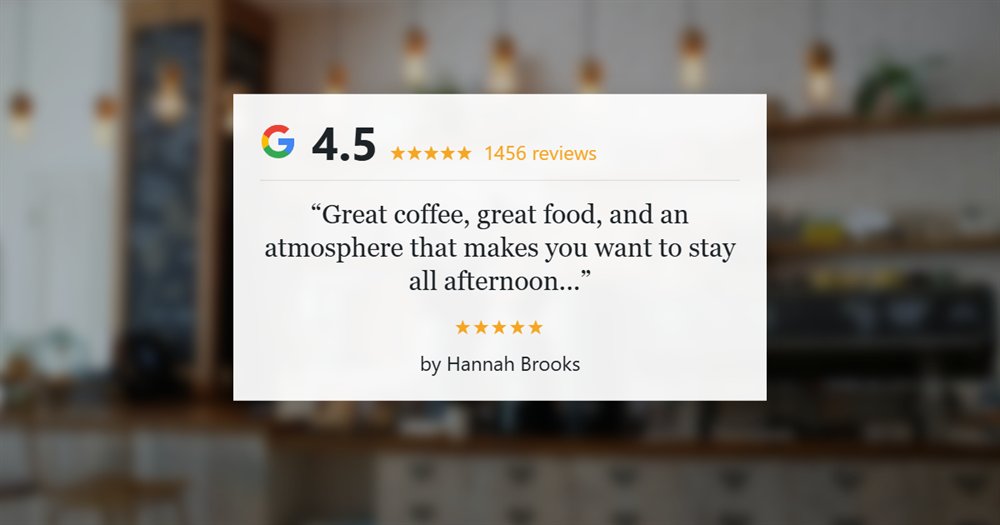
Review Cards in WP Review Slider Pro turn a review you have already imported into a finished graphic you can post on Instagram, Facebook, LinkedIn, or drop into an email. The reviewer name, stars, and quote come straight from the review, so there is nothing to retype and no design tool to open.
This feature shipped in WP Review Slider Pro 12.7.15. Open WP Review Slider Pro → Display Reviews → Review Cards and click Create Card.
Shopping for this feature? See the Shareable Review Cards feature page for layouts, styles, and example cards.
- Start from a real review. Pick any review from Google, Facebook, Yelp, or any other source you have connected.
- Pick a layout and style. Ten layouts across landscape and square sizes, five style presets, and full control over text, background, and footer.
- Download a PNG. Save the card so you can come back to it, then download it whenever you need a fresh copy.
Pick the review
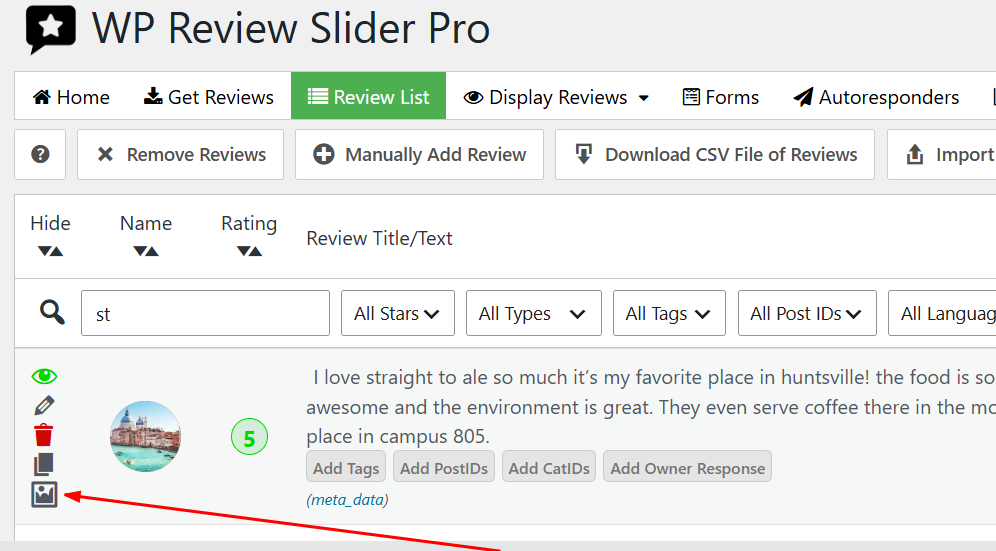
You can pick a review from the Review List page using the camera icon, or you can go directly to the Review Card page.
This is how you can find the Review Card page….
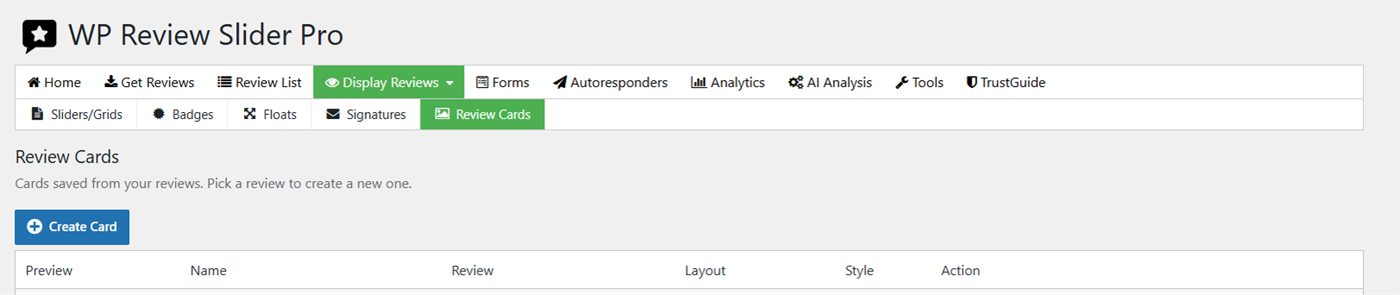
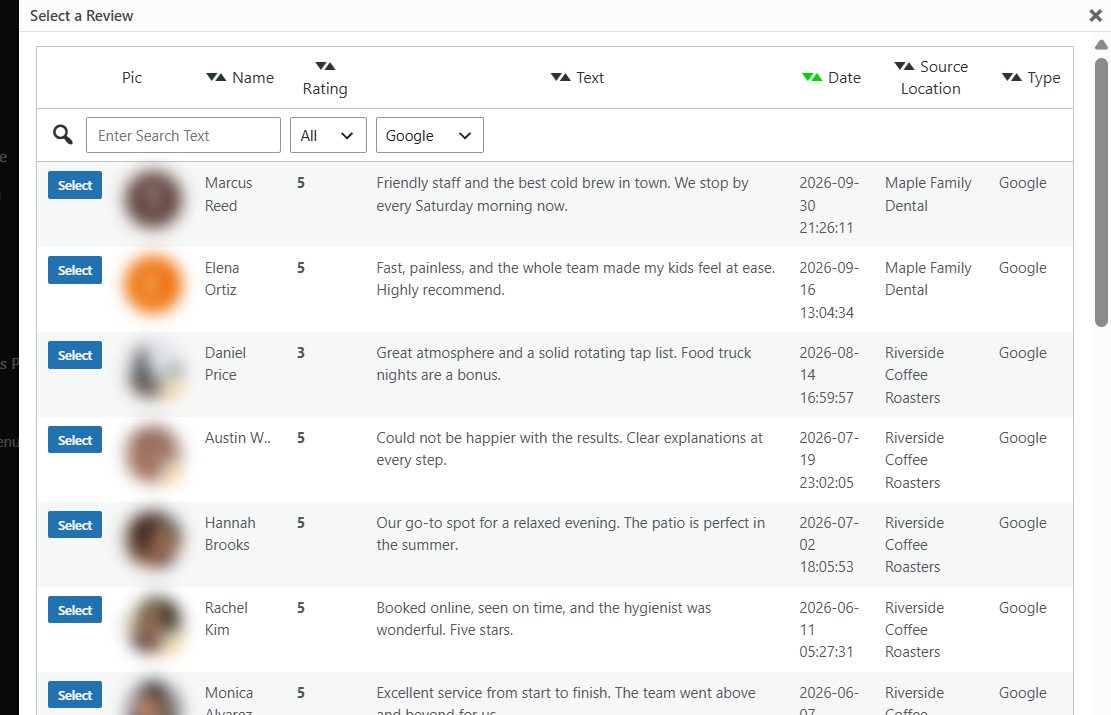
Click Create Card on the Review Cards tab. A Select a Review window lists your imported reviews with the reviewer photo, name, rating, text, date, source location, and source type. Search by text, filter by minimum star rating or source type, and click Select next to the review you want.
There is a shortcut too. In Review List, each review has a small image icon next to the edit and delete icons. Click it to open the card builder for that review.
Choose a layout and style
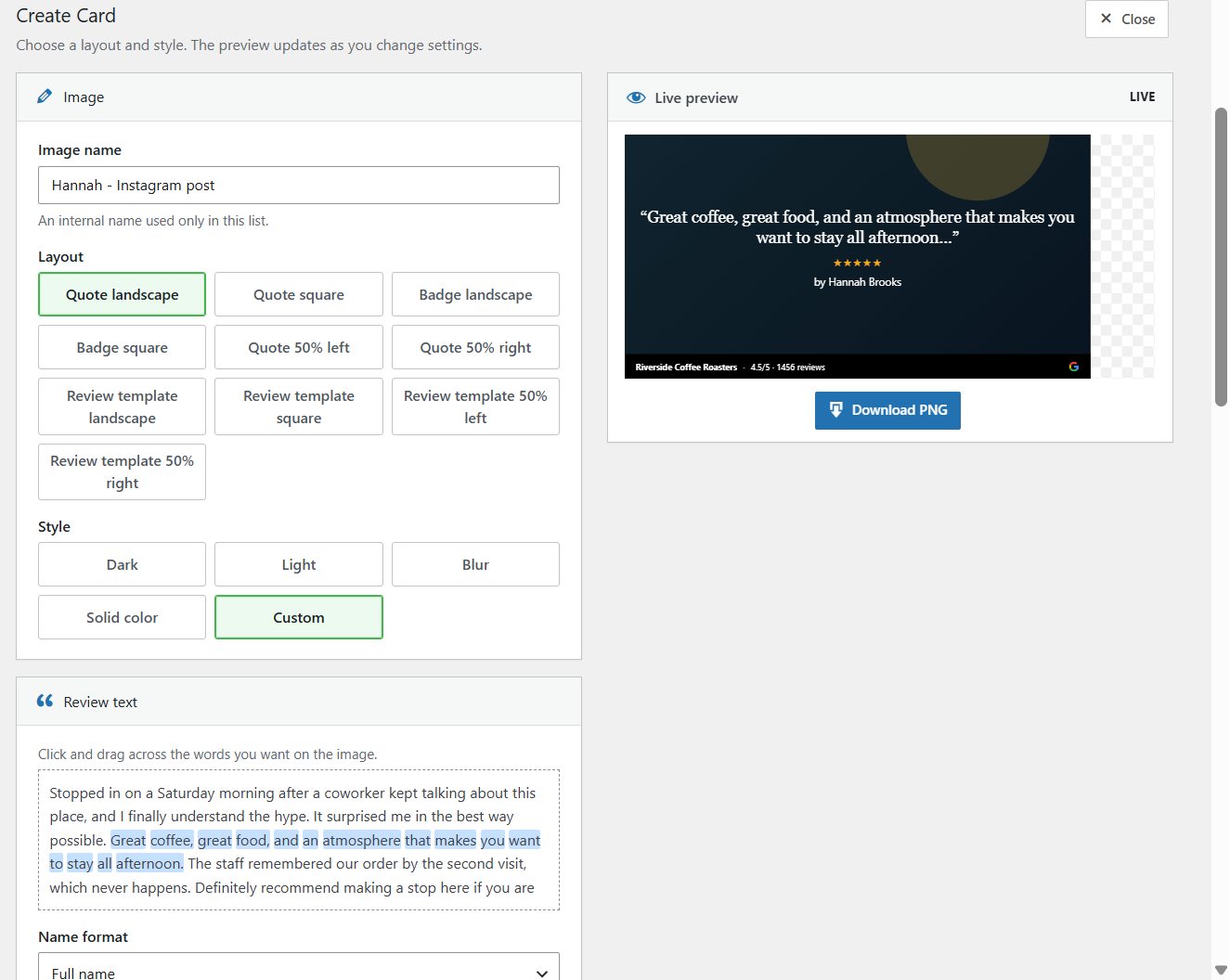
Give the card an internal name. That name only appears in your list and becomes the file name when you download. Then choose a layout:
- Quote puts the review text front and center with stars and the reviewer name underneath. Available in landscape (1200 by 630), square (1080 by 1080), and 50% left or right, which keeps the text on one half so the background photo shows on the other.
- Badge adds a white panel with the source logo, your average rating, and total review count above the quote. Landscape and square.
- Review template renders the review using one of the plugin’s slider template styles, so the card matches the reviews on your site. Landscape, square, and 50% left or right. A Review template style dropdown picks the template, and you can set the card background and border colors or hide the avatar.
Next pick a style preset: Dark, Light, Blur, or Solid color. Each preset sets the text color, background treatment, and footer in one click. Change anything after that and the style switches to Custom, which simply means you are in charge now.
Select the quote and name format
Long reviews rarely fit on a card. In the Review text panel, click and drag across the words you want to show. The live preview updates as you drag, and the card adds quotation marks and an ellipsis when the quote is a partial sentence.
Use Name format to control how the reviewer is credited: full name, first name and last initial, initials only, or hidden entirely. The same options you have for sliders and badges are here, which helps if you prefer not to publish full names.
Choose a background
The Background source dropdown gives you six places to pull from:
- This review uses photos the customer attached to the review.
- This source shows photos from other reviews of the same location.
- Bundled images are six abstract backgrounds that ship with the plugin.
- Media library opens the WordPress media picker for your own photos and brand graphics.
- Free images searches Unsplash. Type a phrase, click Search, and pick a result.
- Solid color uses a flat color with an opacity slider.
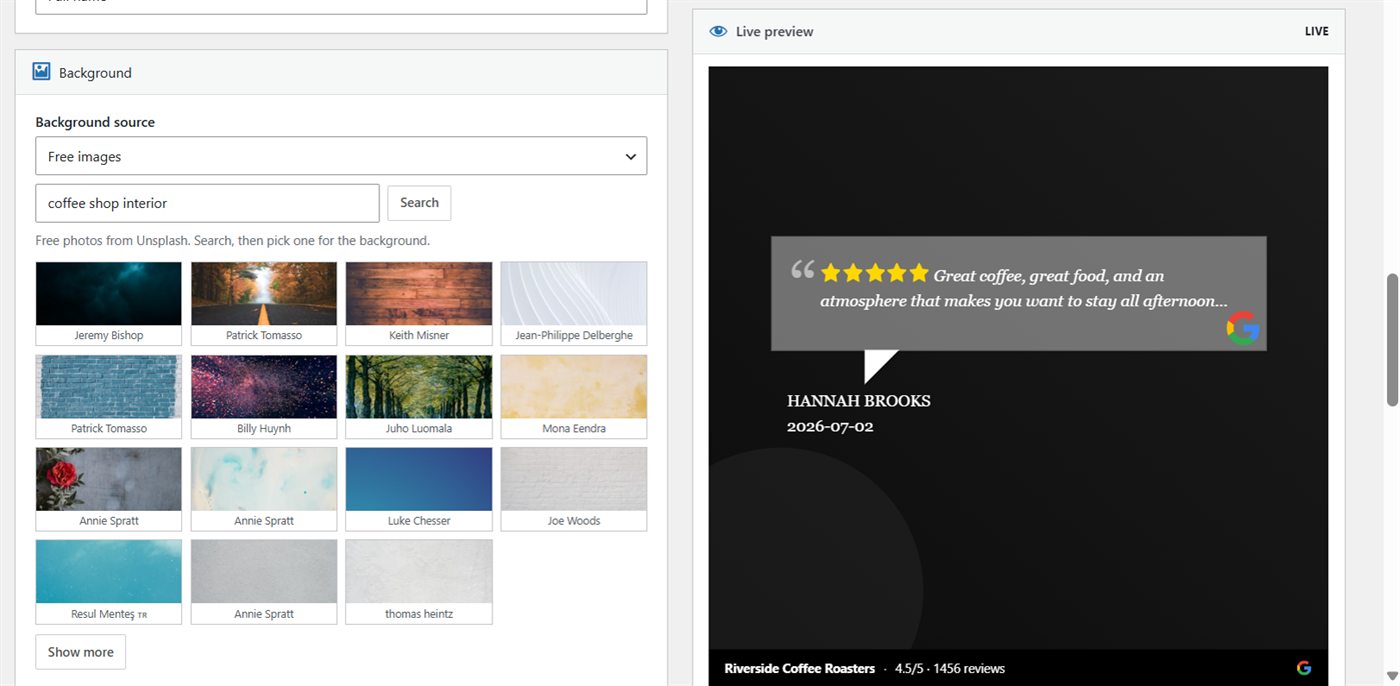
Once a photo is in place, use Blur and Image filter (light or heavy fade, light or heavy contrast) with the Fade amount slider to keep the text readable. The arrow pad nudges the photo up, down, left, or right so the subject sits where you want it. Pick the layout and style first, then the photo; switching layouts afterwards resets the background to the preset.
Adjust text and footer
The Text panel scales the quote and the stars independently, sets alignment and width (100%, or 50% left or right), and controls text color, an optional text background with its own opacity, bold, and italic.
The Footer is the strip along the bottom with your business name, average rating, total review count, and the source logo. The business name defaults to the source name and can be edited or cleared. Choose a dark or light footer, or set custom background and text colors, and scale it with the size slider. Turn it off if you want the photo to run edge to edge.
Save and download the PNG
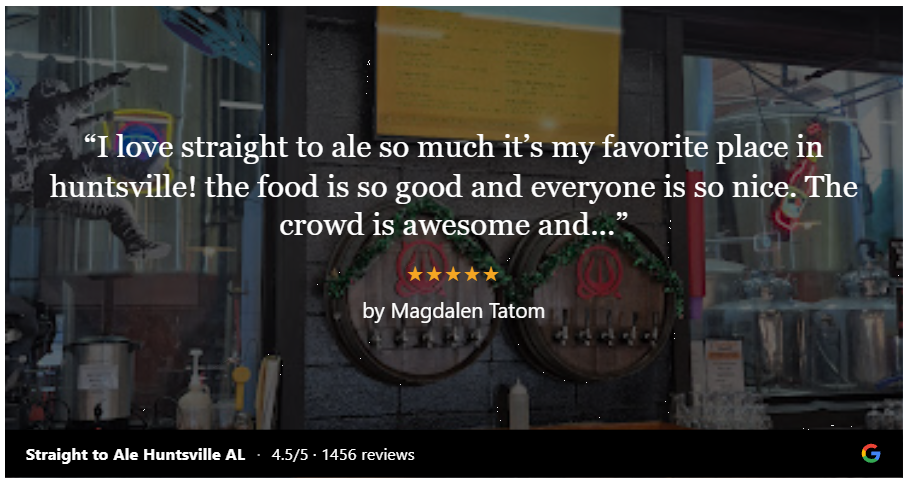
Click Save to store the card with the review. Click Download or Download PNG under the preview to get the image at full size: 1200 by 630 pixels for landscape layouts and 1080 by 1080 for square. Saved cards appear on the Review Cards tab with a thumbnail, and each review’s own card list shows every card you have made from it. Use Edit to tweak a card later or Download to grab it again without opening the builder.
Frequently asked questions
Which size should I use for Instagram, Facebook, and LinkedIn?
Square (1080 by 1080) is the safe choice for Instagram feed posts and works well on Facebook and LinkedIn too. Landscape (1200 by 630) matches the link preview size used by Facebook, LinkedIn, and X, and it fits nicely in email newsletters and blog posts.
Can I make more than one card from the same review?
Yes. Each review keeps its own list of cards, so you can save a square version for Instagram and a landscape version for your newsletter from the same review. Give each one a different name.
Do I need to credit Unsplash photographers?
Unsplash photos are free to use, including commercially, and attribution is appreciated but not required under the Unsplash license. The photographer name is shown under each result in the picker if you want to add a credit to your post.
Does the card use the review’s actual rating?
Yes. The stars on the card are the rating the customer gave, and the footer and Badge layouts use the real average and review count for that source. You can shorten the quote, but you cannot change the rating.
This walkthrough is part of What’s New in WP Review Slider Pro 12.7.15. Update from your WordPress dashboard to get the Review Cards tab. Review Cards are included with every license; compare plans on the WP Review Slider Pro pricing page.