
Review email signatures in WP Review Slider Pro put your rating, review count, and a link in the emails your team already sends. You copy the finished signature into Gmail, Outlook, or Apple Mail. You do not need a separate signature app.
This feature shipped in WP Review Slider Pro 12.7.12. Open WP Review Slider Pro → Signatures and click Add New Email Signature.
Shopping for this feature? See the Review Email Signature Builder feature page for layouts, live rating images, and examples.
- Use the reviews you already have. Pick one or more source pages. The primary source supplies branding, and every selected source counts toward the rating.
- Match the person who sends it. Choose a layout, then add a name, title, logo, destination URL, and call to action.
- Paste it once. Copy HTML into Gmail, Outlook, or Apple Mail. A live rating image can keep the stars and count current.
Choose the review sources
Give the signature an internal title. That name only appears in the signature list. Then select one or more source pages.
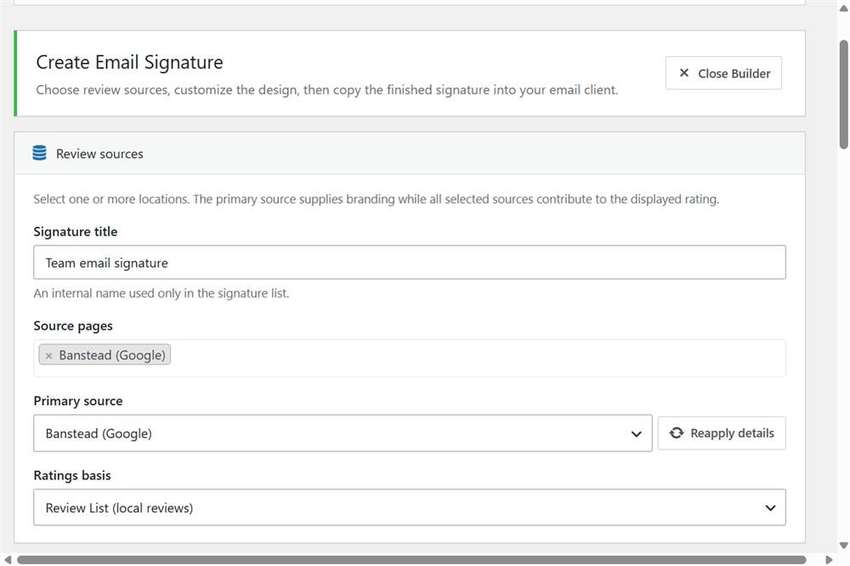
The primary source supplies branding such as the platform logo and business name. All selected sources contribute to the displayed rating. If you change the primary source, click Reapply details to pull that location’s name and branding into the form again.
Pick a ratings basis:
- Review List (local reviews) uses the reviews already stored in the plugin.
- Source totals (platform averages) uses the averages from the connected platforms.
Design the email signature
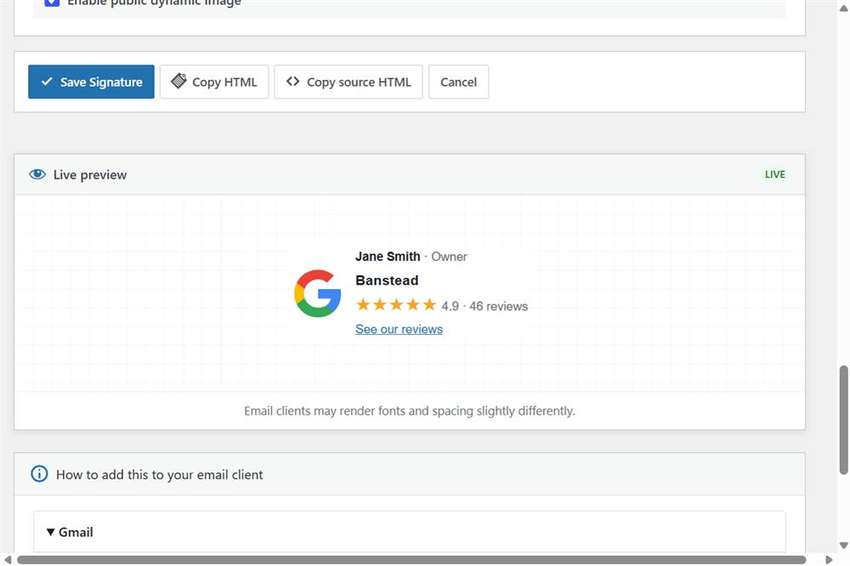
Choose a style preset: Compact, Rating Bar, Card, Minimal, Professional, or Spotlight. Then fill in the person name, person title, business name, logo, destination URL, and CTA text. Colors cover text, muted text, stars, links, border, background, button background, and button text. The live preview updates as you work. Email clients may still render fonts and spacing a little differently.
Copy the signature into Gmail or Outlook
Save the signature, then choose an output mode:
- Static HTML snapshot copies the whole signature as it looks right now.
- HTML + live rating image keeps the layout in HTML and hosts only the stars and rating as an image, so the score can update later. Turn on Enable public dynamic image so that image can load.
Copy HTML is what you paste into the email client. Copy source HTML is the raw markup if a client strips the formatted paste. The builder includes steps for each client:
- Gmail: Settings → See all settings → General → Signature. Paste, then send a test to yourself with images allowed.
- Outlook: File → Options → Mail → Signatures. Outlook often hides external images until the recipient downloads pictures.
- Apple Mail: Mail → Settings → Signatures. If formatting looks wrong, open the source HTML in a browser, copy the rendered signature, and paste that into Mail.
The live rating image recalculates when it is requested. Gmail and Outlook image proxies may cache it, so updates are best effort.
Frequently asked questions
Should I use a static signature or a live rating image?
Use static HTML when you want the signature frozen at the moment you copy it. Use HTML plus a live rating image when you want the stars and count to be able to change without pasting a new signature. The rest of the layout stays HTML either way.
Can one email signature combine more than one review source?
Yes. Select every source page that should count. The primary source supplies the logo and business branding. The rating includes all of the sources you selected.
Will Gmail always show the newest rating?
Not always. The image on your site is generated fresh, but Gmail and Outlook may cache remote images. Send a test after you paste the signature, and expect rating updates to be best effort.
This walkthrough is part of What’s New in WP Review Slider Pro 12.7.12. Update from your WordPress dashboard before you copy a signature. The signature builder is included with every license; compare plans on the WP Review Slider Pro pricing page.