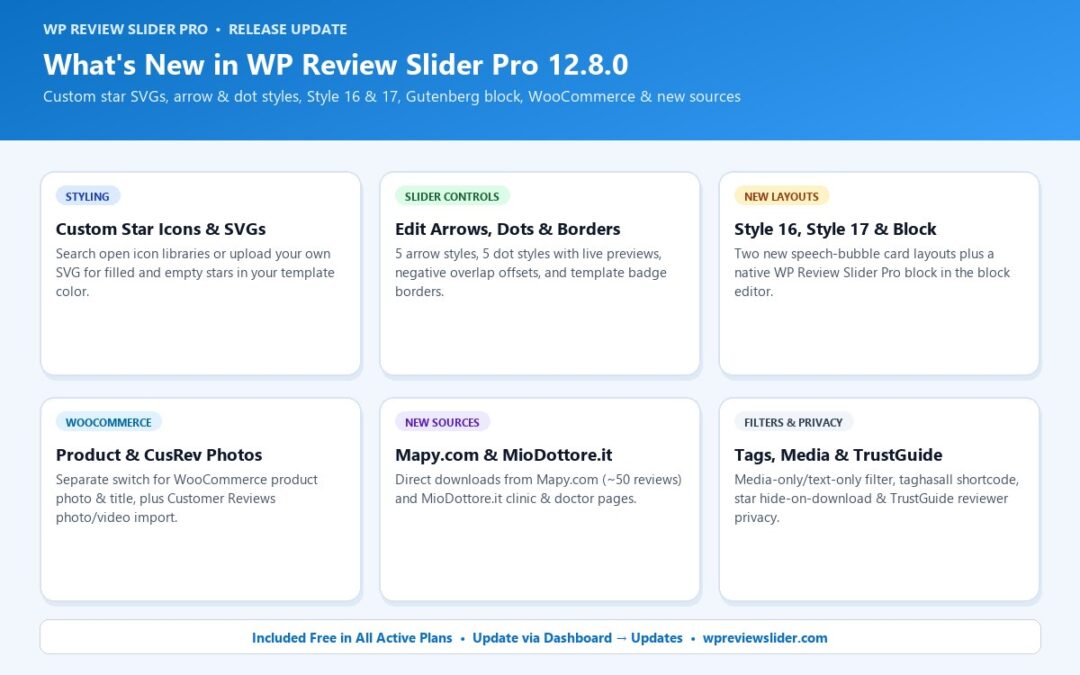
WP Review Slider Pro 12.8.0 is the update you will see in your dashboard. It rolls up everything since 12.7.19: your own star icons, slider arrows and dots you can restyle, two new layouts, a block for the editor, WooCommerce product photos, Mapy.com and MioDottore.it, and tighter control over which reviews appear on the site.
Use your own star icon
Open a template and look at the star row on Template Style. The filled star and the empty star are now buttons. Click either one and pick an icon, or search. The search box says Search icons, e.g. star and pulls free icons from Material Design, Tabler, Lucide, Phosphor, and other open sets. You do not have to credit them on your site.
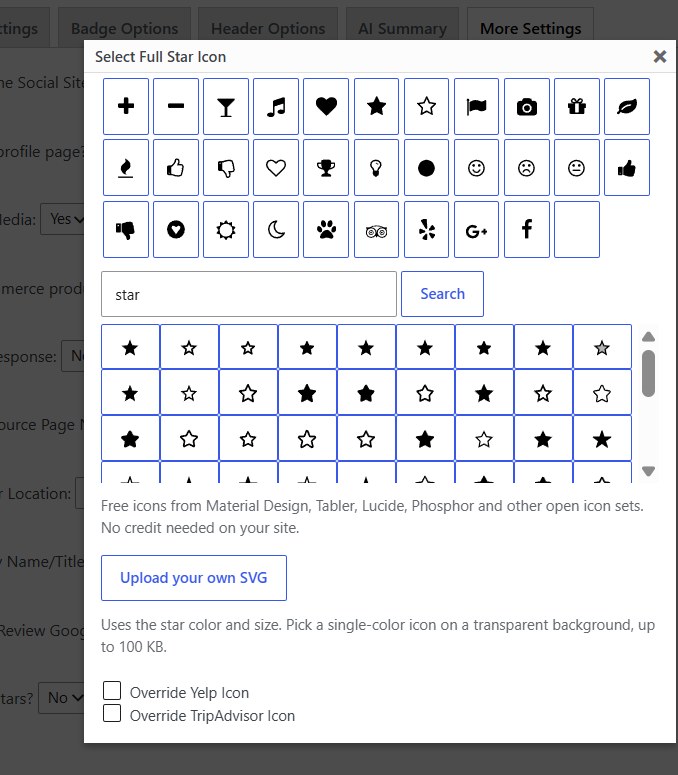
Upload your own SVG if you already have a mark. Use a single-color icon on a transparent background, up to 100 KB. The icon takes the star color and star size you already set on that template. You can choose a different icon for the filled star and the empty star.
Restyle the slider arrows, dots, and badge border
On General Settings, with arrows turned on, Edit Arrows opens a preview. The styles are Normal, Advanced, Shadow Circle, Rounded Square, and Chevron Only. You set the arrow color, the inner color, the size, and how far the arrows sit from the reviews. A negative distance lets the arrows overlap the reviews.
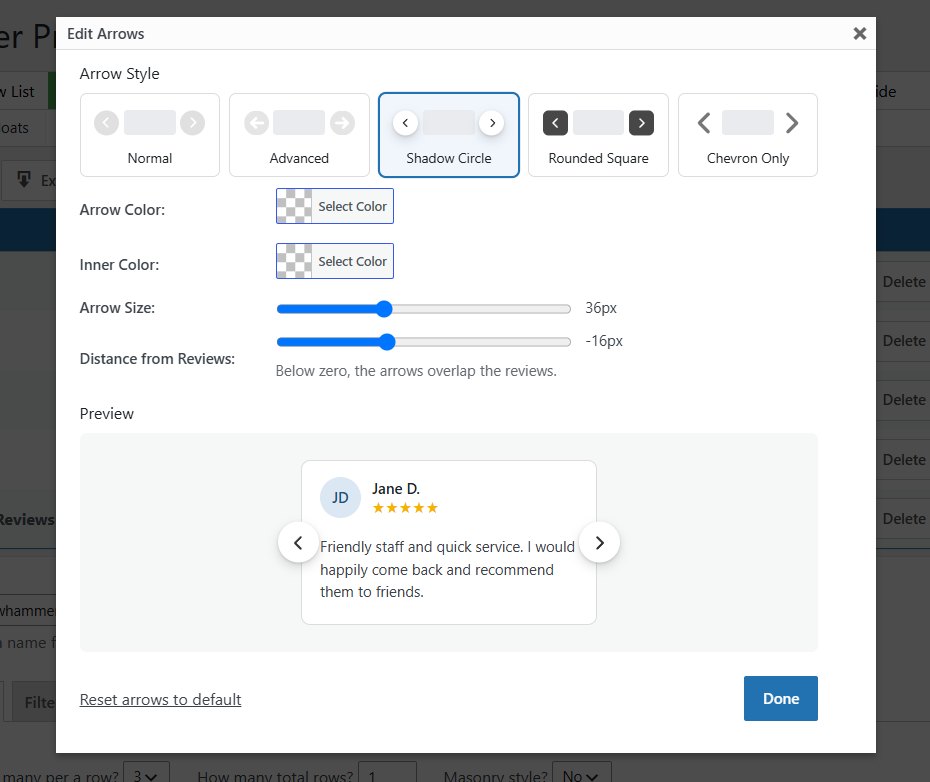
Edit Dots works the same way. The styles are Normal, Advanced, Pill, Lines, and Squares, with a color for the dots, a color for the dot of the slide that is showing, a size, and a distance from the reviews.
On Badge Options, Border Size and Border Color draw a line around the badge on that template. Set the size to 0 when you do not want a border.
Two new layouts
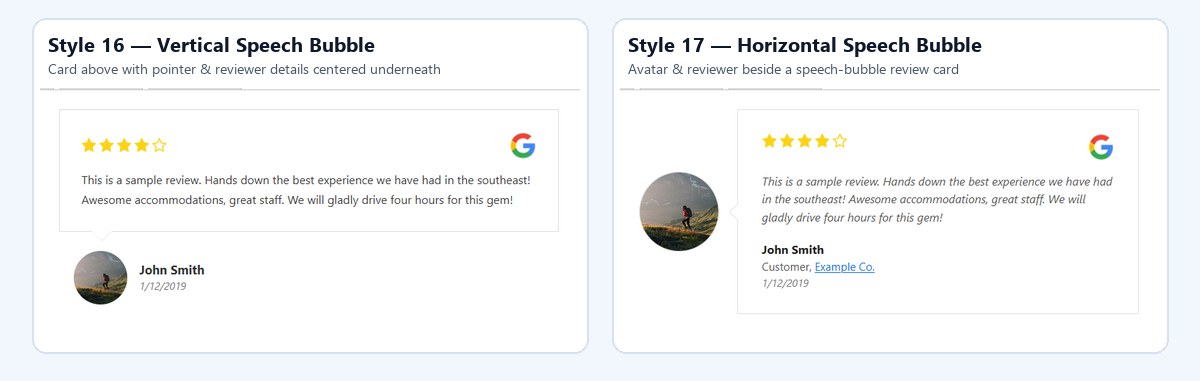
The Template Style menu now goes through Style 17. Style 16 is a speech-bubble card with the reviewer under the bubble. Style 17 is a horizontal speech bubble with the avatar beside the card. Both work as a grid or a slider, and both use the star, color, and avatar settings you already have.
Add a template from the block editor
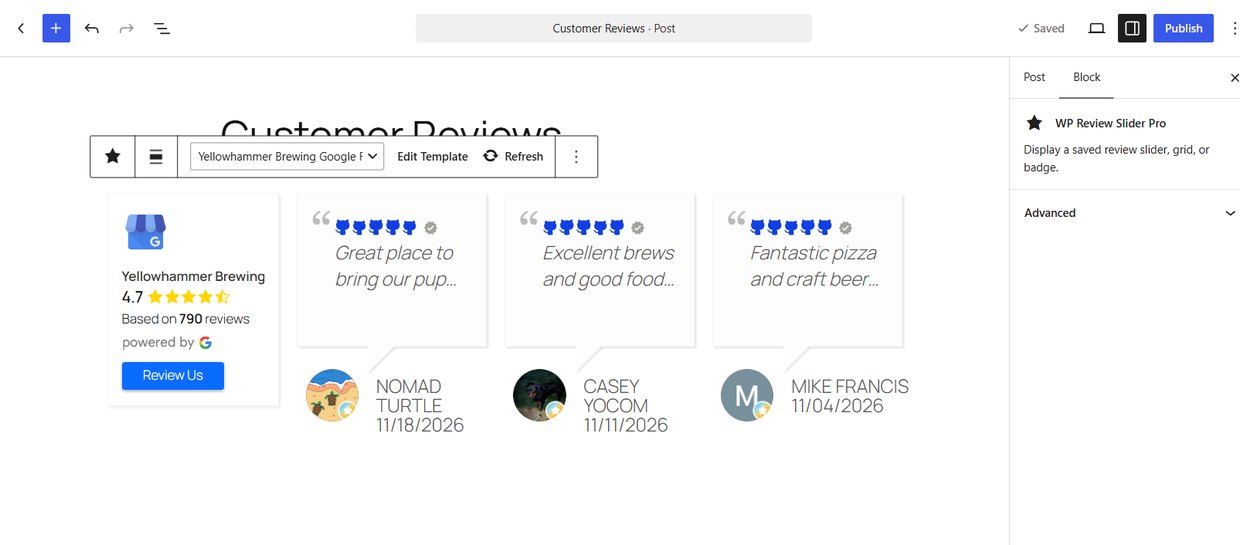
In the block editor, add the WP Review Slider Pro block and pick a saved template. It prints the same slider or grid as the template shortcode. Badges, forms, and floats still use their own shortcodes. The block does not take the extra shortcode filters (a location, a language, or a tag). When you need those, paste the shortcode into a Shortcode block instead.
WooCommerce product photos, and customer photos
When WooCommerce is active, More Settings has Display WooCommerce product image and title. Yes shows the product photo and the product name on a WooCommerce review. No hides them. That switch does not turn review photos or videos on or off.
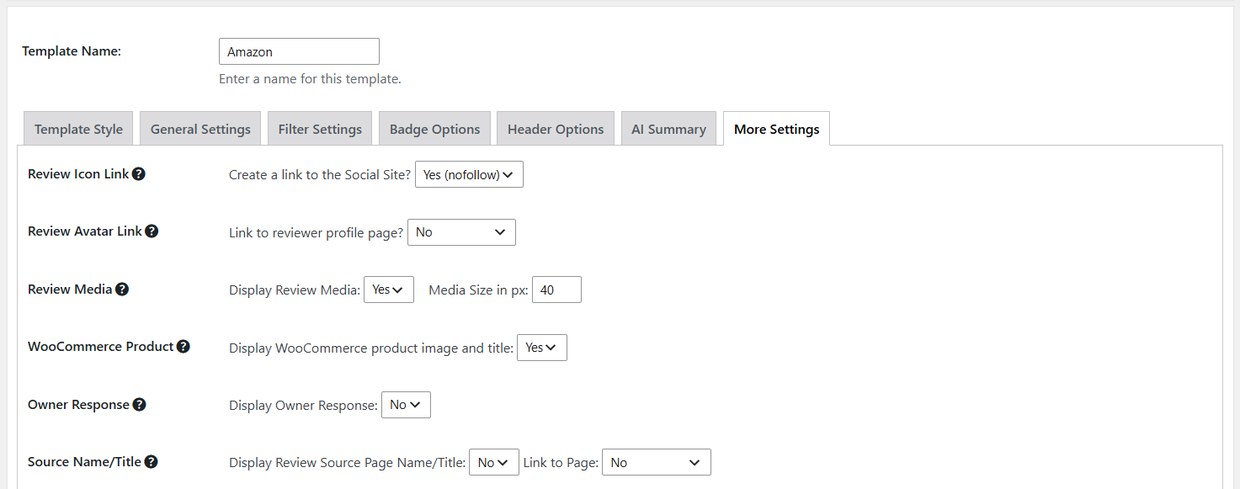
Photos and videos left with the Customer Reviews for WooCommerce plugin are copied onto the review when you pull WooCommerce reviews. Turn on Display Review Media on the same More Settings tab to show them. The walkthrough is on WooCommerce product reviews.
Mapy.com and MioDottore.it
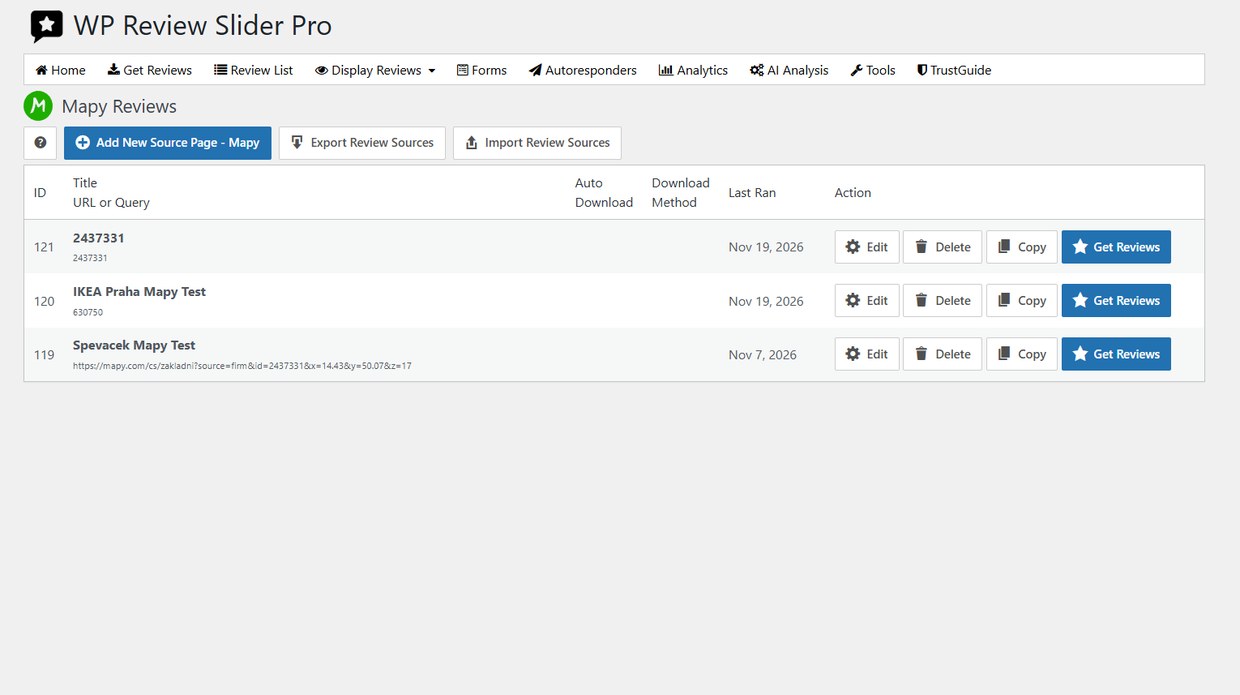
Mapy.com is a direct download on Get Reviews. Paste a place ID, such as 2437331, or a Mapy.com link that contains id=. The download brings in about 50 reviews. Mapy.com scores run from 0 to 100, and the plugin stores them as half-star steps.
MioDottore.it is also on Get Reviews. Paste the clinic or doctor page, for example a miodottore.it/strutture/ or miodottore.it/profilo/ link. Reviews come in 10 at a time, newest first. Run the download again when you want the next page.
Decide which reviews visitors see
Filter By Media on a template is Reviews with Media Only, Reviews with Text Only, or Both. Use Media Only for a photo grid. Use Text Only when you want quotes and not picture-only ratings.
Filter By Tags now suggests tags you have already saved on reviews. Type to narrow the list and pick one. Must Not Have hides a review that has any of the tags you list. Before, with more than one tag, a review was hidden only when it had all of them.
The shortcode can require every tag, not just one of them. [wprevpro_usetemplate tid="1" taghasall="tag1,tag2"] shows reviews that have both tags. Put a | between choices when either tag is fine for that spot: taghasall="public courses, italian|english" shows public-courses reviews tagged italian or english. The older tag parameter still means “any of these tags.”
Load More and the page numbers now keep the shortcode’s text and tag limits. Before, page 2 could show reviews the first page had filtered out.
Tools → Hide Reviews on Download can hide new downloads by star rating: Yes if 1 star, Yes if 2 or lower, Yes if 3 or lower, or Yes if 4 or lower. A hidden review stays off every template until you use the eye icon on Review List. A review with no stars stays visible unless you choose Yes, which still hides every new download. The screen still recommends No when you only want the public slider to skip low stars. Use Filter By Rating on the template for that, and leave the reviews in your list.
More room inside a review card
Review Cards now have Margin left/right and Margin top/bottom, from 0 to 400 pixels. Margin is the gap between the quote and the edge of the background. Padding is still the white space around the whole card, and the downloaded image keeps the size you picked. A card background loaded from another website that failed to appear on an older copy is fixed in this update. Open the card and download it again.
TrustGuide shares only what you allow
If you use TrustGuide, the pairing step now lists what is sent, notes that TrustGuide is hosted in the United States, and links to the TrustGuide privacy policy, data processing agreement, and subprocessors. You acknowledge that once before the link is saved.
Reviewer Privacy is on the TrustGuide screen. Leave Send full reviewer names unchecked and TrustGuide gets a first name and last initial, such as Jane D. Send reviewer profile photo links and Send review image links are separate. Review titles, reviewer locations, language, verified flags, and links back to the original review are no longer sent. The next sync replaces what TrustGuide is showing. Suggested wording for your own privacy policy is under Settings → Privacy → Policy Guide.
Disconnect stops syncing and clears deliveries that have not gone out. It does not delete reviews already on TrustGuide. To remove those, delete the connection or the business in your TrustGuide dashboard.
Fixes you will notice
- Yelp Crawl downloads were fixed again. If an older copy returns nothing from a public Yelp page, update before you change the URL.
- VRBO review photos that were missing on an older copy download with the review after you update.
- On sites with 50 or more Google or Facebook reviews, saved profile photos are refreshed in batches and then the job waits 12 hours. It no longer keeps checking every 45 seconds. A failed download no longer saves the site’s error page as the reviewer’s photo, and photos saved that way are fetched again.
- In a Read More pop-up, the Google icon stays visible, and icons such as Mapy.com use the template’s site-icon size instead of showing full size. A link wrapped around the avatar in that pop-up works again.
- The Review List source filter shows the site logo next to the name, so a long list of locations is easier to scan. A review you added by hand and then attached to a source can be untagged and turned back into a manual review.
- A place ID that includes accented letters keeps those letters. Two locations no longer get saved as one because the accents were dropped.
- Template styling is reused instead of being rebuilt on every page view. Saving a template clears that saved copy, including on sites that use Redis or a similar cache, so a color change shows up.
- HTML typed into a review no longer runs in Review List or Analytics. Facebook reviewer names and page details are cleaned when those reviews are downloaded.
Update from Dashboard → Updates when 12.8.0 shows up. Your reviews, templates, and badges stay in place. The previous notes are in What’s New in 12.7.19, and the full list is on the changelog. New to the plugin? Compare licenses on the pricing page. Every current plan includes these updates.