You can display verified G2 and Capterra software reviews on WordPress without slow third-party iframes by importing them into your own WordPress database with WP Review Slider Pro ($29/year or $99 lifetime). Using the built-in Review Funnel tool (which includes 2,000 free review credits every year), the plugin fetches your public G2 and Capterra reviews on a schedule, caches reviewer avatars locally as WebP images, and lets you combine G2, Capterra, Clutch.co, Google, Product Hunt, and WordPress.org reviews in 15 fast slider, masonry grid, and badge layouts.
G2 & Capterra Integration Facts (WP Review Slider Pro v12.7.21):
• Download Method: Built-in Review Funnel (G2Crowd and Capterra in the source dropdown — no API token or developer app required).
• Included Credits: 2,000 free Review Funnel credits/year on every active Pro license (10 base credits + 1 credit per scraped review).
• What Is Stored Locally: Reviewer name (with last-name initial privacy option), star rating, review date, full B2B review text, platform icon, and optional local WebP avatar.
• Display & Page Builders: 15 slider/grid/list templates, 7 summary badges, corner floats, AI Review Summaries, and Shareable Social Review Cards in Gutenberg, Elementor, Divi, Bricks, and Oxygen.
• Price: $29/yr (1 site), $59/yr (5 sites), $149/yr (50 sites) or $99 / $199 / $449 one-time lifetime • 7-day free trial.
Why SaaS & B2B Marketing Teams Outgrow Default G2 and Capterra Embeds
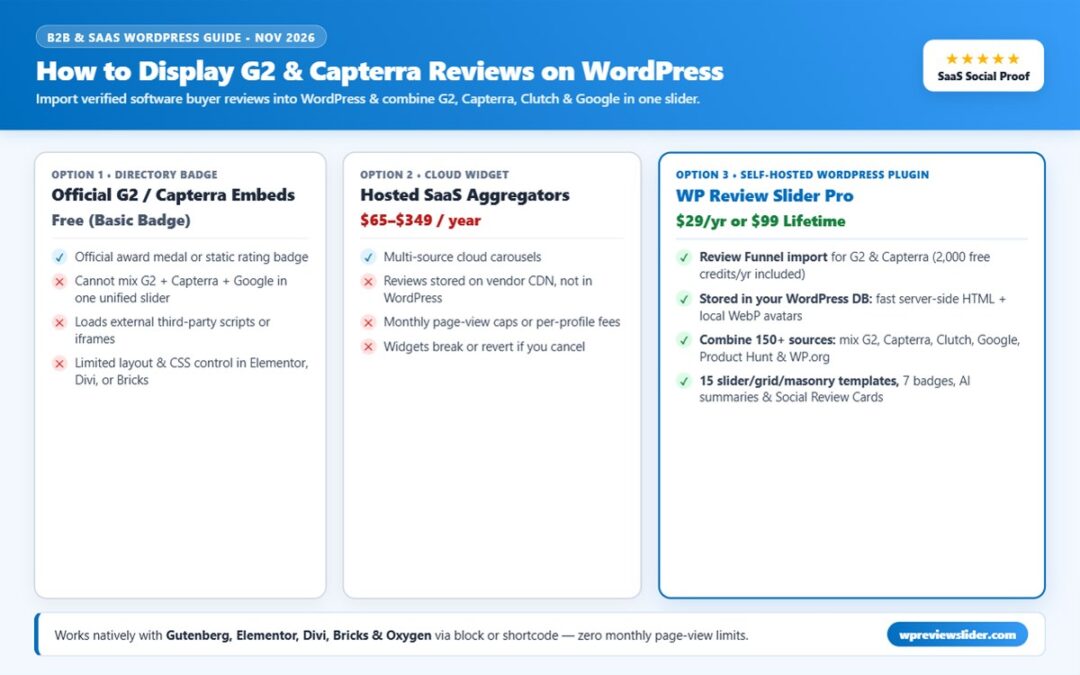
Official G2 and Capterra award badges are great for showing a seasonal “High Performer” medal in your footer, and following G2’s January 2026 acquisition of Capterra, Software Advice, and GetApp (now G2 Digital Markets), B2B buyers check both directories before booking a demo. When you actually embed directory review widgets onto high-converting SaaS landing pages, however, three bottlenecks show up fast:
| Feature | Official G2 / Capterra Embeds | Cloud SaaS Widget Aggregators | WP Review Slider Pro (Self-Hosted) |
|---|---|---|---|
| Where review HTML loads from | External third-party JS / iframe | Vendor cloud CDN ($65–$349/yr) | Your own WordPress database (server-side HTML + WebP) |
| Combine G2 + Capterra + Clutch + Google | No (separate embeds per directory) | Paid multi-source cloud plans only | Yes — 150+ platforms in one unified slider or badge |
| Filter reviews per SaaS feature page | Limited | Basic star filters | Tag, keyword, length, rating & Post ID filters |
| Elementor, Divi, Gutenberg & Bricks styling | Fixed embed styling | Preset cloud skins | 15 templates, custom CSS, Read More lightbox & child themes |
| What happens if you stop paying? | Badge only | Cloud widgets expire or cap views | Downloaded reviews & sliders stay live in WordPress |
| Cost (1 WordPress site) | Free basic badge | $65–$349/year recurring | $29/year or $99 one-time lifetime (zero view limits) |
How Do You Import G2 and Capterra Reviews into WordPress Step by Step?
Step 1: Open Review Funnels and Create a G2 Funnel
After installing WP Review Slider Pro (or activating the 7-day free trial), go to WP Reviews Pro → Review Funnels in your WordPress admin sidebar and click Add New Review Funnel. (You can also reach the exact same screen from WP Reviews Pro → Get Reviews → Add Review Source Site by clicking the G2Crowd * or Capterra * tile; the asterisk marks Review Funnel sources.)
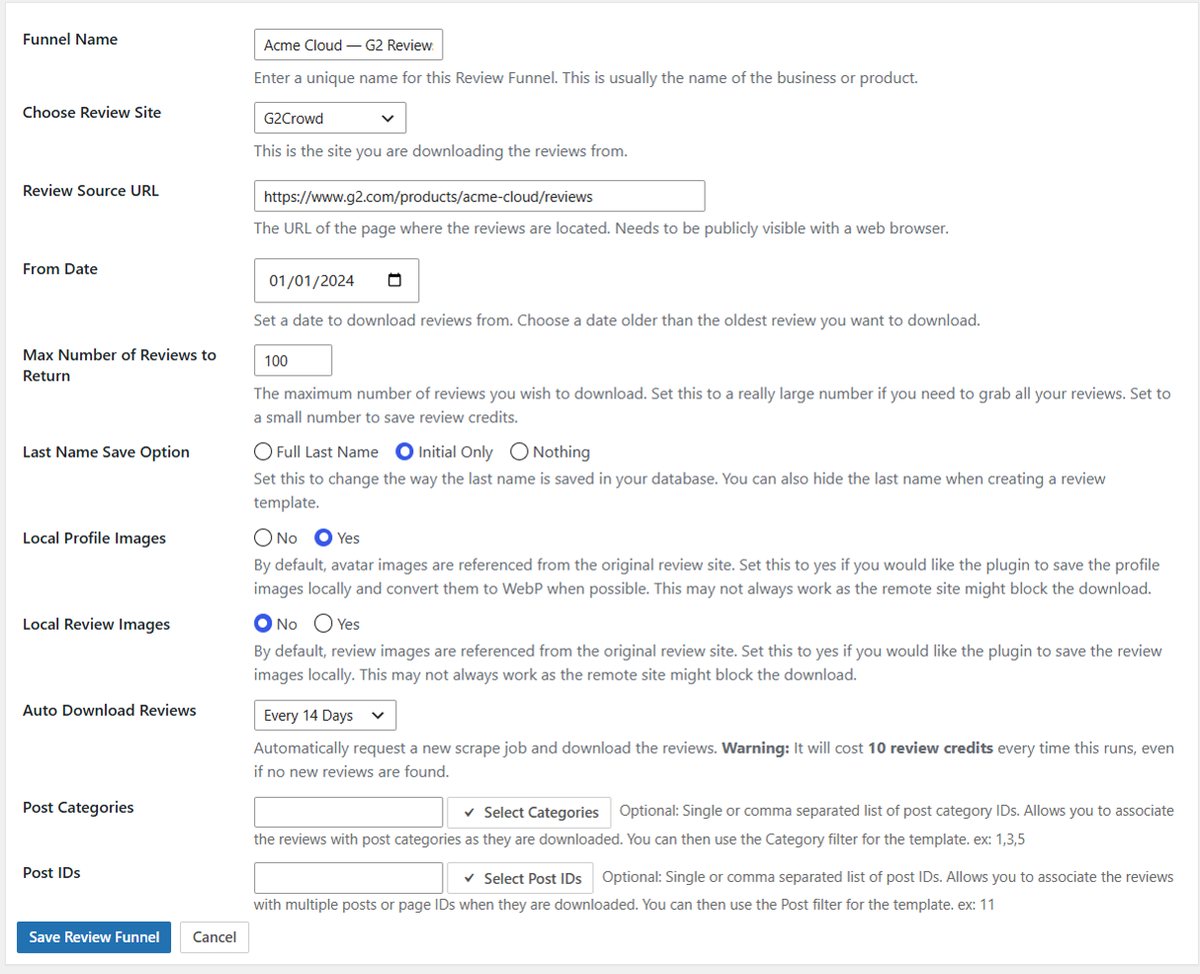
- Funnel Name: Enter a clear internal label such as
Acme Cloud — G2 Reviews. - Choose Review Site: Select G2Crowd from the dropdown for G2.com product profiles.
- Review Source URL: Paste the public browser URL of your G2 reviews page (for example,
https://www.g2.com/products/your-product/reviews). Make sure you paste the page that actually lists customer reviews, not a gated vendor login URL. - From Date & Max Number of Reviews to Return: Pick a From Date older than the earliest G2 review you want to import (such as
2024-01-01) and set your maximum review count (default is25; raise it to100or higher for your initial archive pull). - Last Name Save Option & Local Profile Images: Choose Initial Only if enterprise SaaS reviewers prefer Sarah M. formatting, and set Local Profile Images to Yes so avatars are saved on your WordPress server and converted to lightweight WebP files.
- Auto Download Reviews: Choose Every 14 Days or Once a Month for hands-free WP-Cron syncing, then click Save Review Funnel.
Step 2: Add a Second Review Funnel for Capterra (Plus Software Advice or TrustRadius)
Click Add New Review Funnel a second time to connect your Capterra listing:
- Set Choose Review Site to Capterra and paste your public Capterra product URL (for example,
https://www.capterra.com/p/123456/Your-Product/reviews/). - Sell across multiple software directories? The same dropdown also includes TrustRadius, Gartner, PeerSpot, SoftwareAdvice, ProductHunt, and AlternativeTo via Review Funnel—while Clutch, SourceForge, WordPress.org, and Freemius have zero-credit direct downloads under Get Reviews.
Step 3: Run Your First Scrape Job and Conserve Review Credits
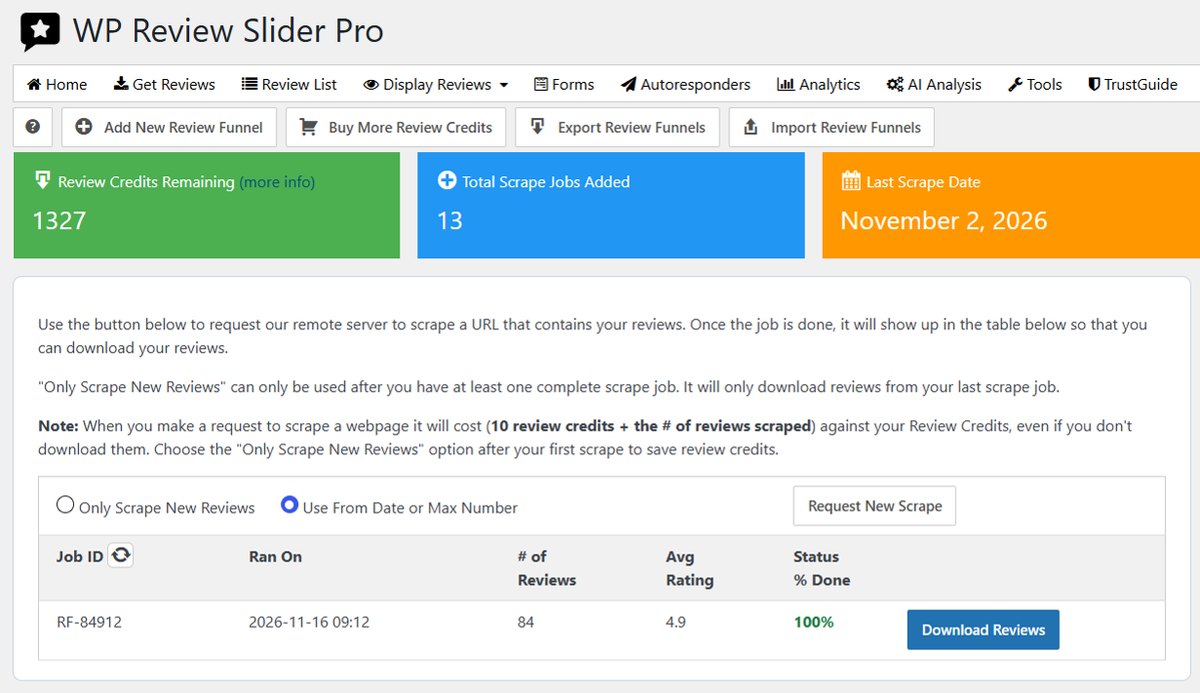
On your saved funnel row, click Get Reviews to open the scrape job manager. Understanding the two radio buttons keeps your 2,000 included annual credits lasting all year:
- First import: Select Use From Date or Max Number and click Request New Scrape. Each scrape job costs 10 base credits + 1 credit per review scraped (so pulling 84 historical G2 reviews uses 94 credits out of your 2,000 annual allowance).
- Ongoing updates: Once you have one completed job, switch to Only Scrape New Reviews. Future runs only pull reviews posted since your last job rather than re-scraping your entire back catalog.
- When the job row reaches 100%, click Download Reviews to save the reviews straight to your local Review List.
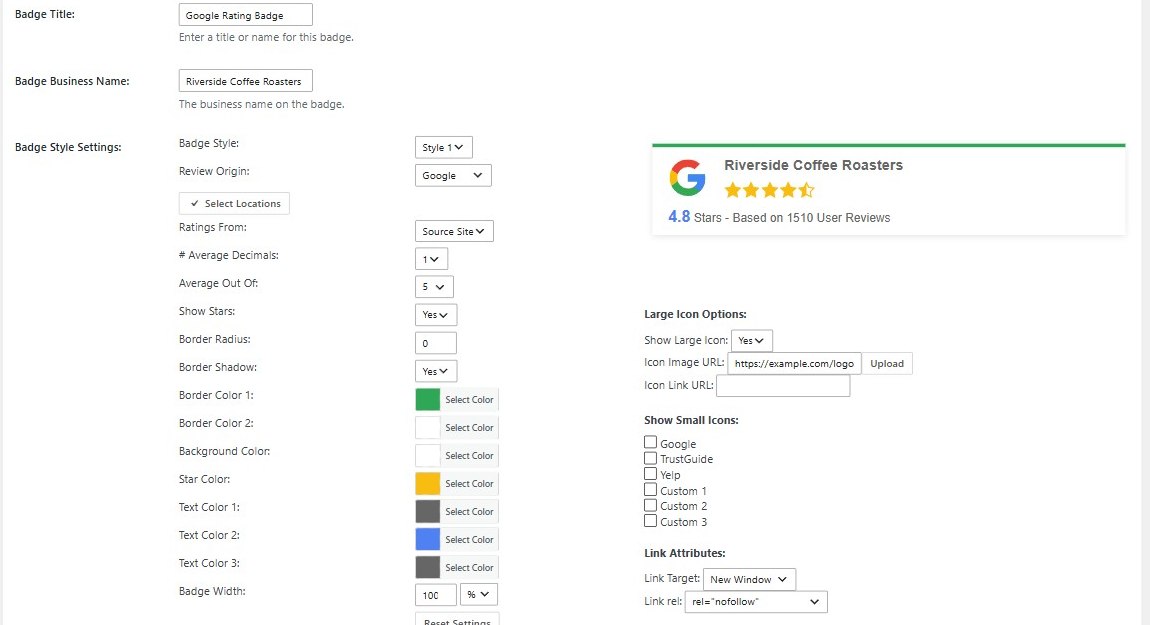
Step 4: Tag Long B2B Reviews & Build Your Slider or Header Badge
G2 and Capterra reviews are much longer than typical 1-sentence Google Maps reviews because reviewers answer structured prompts (“What do you like best?”, “What problems are you solving?”). Two settings under WP Reviews Pro → Templates make B2B reviews look sharp on SaaS pages:
- Trim Long Reviews + Lightbox: Set Trim Long Reviews to Yes (for example, 4 or 5 lines) and check Pop-up review in lightbox when clicking read more so your 3-column carousel cards stay even height while buyers can read full enterprise case-study quotes in one click.
- Platform Icons & Topic Filters: Keep Site Icon set to Yes so every card displays the G2, Capterra, Clutch, or Google badge automatically. Under Filter Settings, filter by 4 & Higher stars, or use Filter By Text String / Filter By Tags (which auto-suggests existing review tags as of v12.7.21) to build dedicated social-proof blocks for your Pricing, Security, or Integrations pages.
- AI Review Summary Header: Open WP Reviews Pro → AI Analysis to generate an instant synthesis of recurring buyer praises and themes across all your G2 and Capterra reviews.
Step 5: Embed in Elementor, Divi, Gutenberg, or Bricks
Click the Shortcode button next to your saved template or badge on WP Reviews Pro → Templates (or Badges) and drop it onto any page:
- Review Slider or Masonry Grid shortcode:
[wprevpro_usetemplate tid="1"] - Above-the-fold Summary Badge shortcode:
[wprevpro_usebadge tid="1"] - Elementor, Divi, Gutenberg & Bricks: Use the native WordPress block in Gutenberg, an Elementor Shortcode widget (also see our 5-minute Elementor setup guide), a Divi Code module, or a Bricks Shortcode element. If your marketing site is WordPress and your web app runs on React or Next.js, the optional WP Review Slider Embed add-on lets you display the exact same WordPress-hosted review slider inside your app onboarding or checkout screens.
Turn Your G2, Capterra & Clutch Reviews into More Demos
Import verified software reviews into your own WordPress database, blend G2, Capterra, Clutch, Product Hunt, and Google in 15 customizable templates, and turn top customer quotes into LinkedIn & X social review cards in one click. Plans start at $29/year or $99 one-time lifetime (with 2,000 Review Funnel credits/year included) and a 30-day refund guarantee.
Start Your 7-Day Free Trial → | Compare Self-Hosted vs. Cloud SaaS Widgets →
Frequently Asked Questions
How do I embed G2 and Capterra reviews on a WordPress site?
In WP Review Slider Pro, open WP Reviews Pro → Review Funnels → Add New Review Funnel, choose G2Crowd (for G2.com) or Capterra from the Choose Review Site dropdown, paste your public G2 or Capterra reviews URL, set your From Date and Max Number of Reviews, and click Save Review Funnel. Click Get Reviews → Request New Scrape to import the reviews into your WordPress database, then display them in Elementor, Divi, Gutenberg, or Bricks with [wprevpro_usetemplate tid="1"].
Can I combine G2, Capterra, Clutch, and Google reviews in one WordPress slider?
Yes. Because WP Review Slider Pro saves every imported review in the same local WordPress database table, a single slider, masonry grid, or header rating badge can blend G2, Capterra, TrustRadius, Gartner, PeerSpot, Software Advice, Clutch, Product Hunt, WordPress.org, Freemius, and Google reviews together—with each card showing the matching platform icon.
How do Review Funnel credits work for G2 and Capterra?
Every active WP Review Slider Pro license ($29/year Starter, $59/year Business, $149/year Agency, or lifetime plans) includes 2,000 free Review Funnel credits per year. Each scrape job uses 10 base credits plus 1 credit per review returned. After your first full historical import, choose Only Scrape New Reviews (or schedule Auto Download every 14 days or once a month) so future syncs only spend the 10-credit job fee plus brand-new reviews.
How do I add G2 and Capterra reviews to Elementor, Divi, Gutenberg, or Bricks?
Copy the template shortcode [wprevpro_usetemplate tid="1"] (or badge shortcode [wprevpro_usebadge tid="1"]) from WP Reviews Pro → Templates and paste it into an Elementor Shortcode widget, a Divi Code or Text module, the native WP Review Slider Gutenberg block, or a Bricks Shortcode element. All review cards render as fast server-side HTML with zero iframe lag.
Can I filter long B2B G2 reviews by feature keyword or tag for specific SaaS landing pages?
Yes. G2 and Capterra reviews often cover onboarding, support, API integrations, and pricing in separate paragraphs. On WP Reviews Pro → Review List you can assign custom tags (or use Template → Filter Settings → Filter By Text String / Filter By Tags) so your pricing page shows ROI reviews, your integrations page shows API reviews, and long multi-question G2 reviews trim cleanly behind a Read More link or lightbox.
What happens to my G2 and Capterra reviews if I let my annual license expire?
Your already-downloaded G2 and Capterra reviews, cached WebP avatars, sliders, grids, and rating badges stay in your WordPress database and continue displaying on your website. Active annual or lifetime licensing is only needed for plugin updates, support, and new Review Funnel scrape jobs.