

Did you know that 90% of online consumers say they’ve had their buying decision influenced by positive reviews?
If you’re not yet taking advantage of customer reviews on your site, you could be losing out on valuable traffic and conversions.
One easy way to add customer reviews to your WordPress site is by using a widget. A WP Google review slider allows you to display your Google Business reviews on your website in an attractive, consumable way.
What are Google reviews?
Google reviews are customer testimonials that appear in search results and on Google Maps listings. They’re a valuable way to build trust with potential customers and improve your SEO.
Positive reviews can improve your click-through rate (CTR) and organic search ranking. One study found that a 1-star increase in Google reviews can lead to a 35% increase in CTR.
If you’re now interested in adding this option to your website, you’ll need to create a Google My Business profile to get started. Then you can encourage your customers to leave reviews on your Google Business listing. Once you have a few reviews, you should add them to your website.

Why should you use a WP Google review slider on your WooCommerce store?
Reviews are essential for eCommerce because they help build trust with potential customers. Someone who hasn’t purchased from your online store will likely look for social influence like reviews and testimonials to validate your product or service.
One place reviews are visible is on Google’s search engine results page (SERP). However, if customers find you through other mediums such as advertising, social media, or newsletters, they won’t have seen them. You can solve this by embedding a Google review slider into your site.
Adding a review slider directly to your website has the added benefit of displaying it at key stages of a shopper’s experience. If you find many potential customers are abandoning carts at checkout, you can add a review widget at this stage to provide further validation.
Though you have many ways to display reviews, a slider is the most appealing and successful. Because of the widget’s efficient use of space while displaying key information, it’s considered best practice to place a review on your home page or after clicking your call to action.
How do I set up a WP Google review slider?
Adding a Google review slider to your site is easy with a plugin. These no-code solutions are big-time savers and allow you to easily place them anywhere on your site.
There are many WordPress Google review plugins including:
- WooCommerce Google Customer Reviews
- Everest Google Places
- Google Reviews Widget
- WP Review Slider Pro
In this article, we’ll use WP Review Slider Pro as it’s the most intuitive and effective alternative. WP Review Slider Pro is an all-in-one plugin displaying reviews from multiple sources. You can add reviews from over 90 platforms, including Amazon, Facebook, Yelp, and Google.
The plugin is also very customizable with floating badges, slideouts, and the ability to order your reviews or create new ones based on customer feedback received in person or by email.
You can quickly get started using out-of-the-box templates professional user experience (UX) designers have put together for the best conversions.
Step by Step, adding WP Review Slider Pro
Follow along with this step-by-step guide on adding Google reviews to your website using the WordPress plugin WP Review Slider Pro. Let’s get started.
1. Create a Google My Business Profile
To allow reviews on your business, you need to register your business with Google. Do this by going to Google Business and clicking “Manage now.” If your business exists and you want to claim it, you can search by location or name; otherwise, click “Create profile”

Once you’ve followed the prompts, you’ll have a Google Business under your management. Go to the business profile portal, where you’ll see your Reviews on the left sidebar.
2. Purchase WP Review Slider Pro
To access this plugin’s amazing features, you need to purchase a license. Pricing starts at $29 a year, which is relatively cheap for WordPress Plugins.

Suppose you’re a larger entity or intend on having your website for more than five years. In that case, you can look at some of their other packages, including Business and Agency tiers with the option for a lifetime license.
3. Installing the plugin
Next, we’re going to install the plugin on your WordPress site. To do this, go to the WordPress backend, select Plugins, and click “Add New.”
In the top right corner of the marketplace, type WP Review Slider Pro in the search bar. When it appears, click Install Now.
4. Set up your first review slider
You’ve installed the plugin, so you should now see WP Reviews Pro in the sidebar. Clicking this will give you an in-depth dashboard of all the features available to you and how to use them.
You’ll need to activate your plugin by inputting your license key from step 2. This is how your site is authenticated with the service.
5. Integrating your Google reviews
You’ll notice on the dashboard that many options are available for review sources. We’re going to start with adding your Google ones.
WP Review Slider Pro finds reviews of your business by scanning public resources on Google. You need to input information about your business so it knows how to identify the correct one.
Go to the Business Profile Dashboard from step 1 and press “View on Search.” The SERP should contain everything you need to complete the identification step. If you’re still having trouble, check out this article on Finding your Google Place ID.
Now go to the “Get Reviews” tab, where you can input your business information. If your business has more than one location, you can change the total locations from one to add more.
Another cool feature allows you to add a rating threshold on reviews so that only the best are displayed on your site.
To verify that your reviews have been uploaded to WordPress, go to the Review List. You can see the review content, who wrote it, and edit it if necessary.
6. Review format and display
You’ve integrated your Google reviews, but now you want an appealing way to display them. You’re going to do this with the prebuilt templates feature.
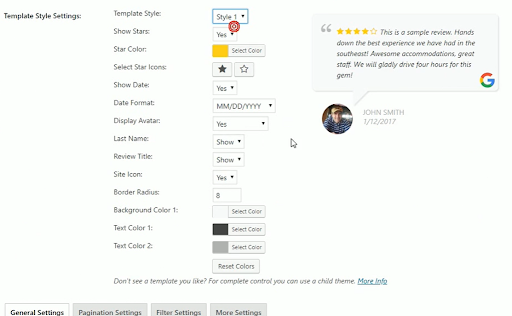
Go to the Templates tab where you’ll see 11 layout options for getting started quickly. You can even customize the templates after selecting one if you’re just looking for a starting point.
7. Set up your site to capture reviews
You’re displaying reviews on your site, but don’t you want a way for customers to leave reviews directly on your site? A feature called Review Submission Forms lets you create a form page to capture more new reviews.
Go to the “Forms” tab. You’ll be able to customize questions and input types. You should try and keep your form brief but ask questions about their experience, how you did, and how you could improve. You’re able to feed specific fields back to your reviews for display.
Prompting customers to leave a review on Google or running a Facebook reviews campaign is another great way to increase credibility on other platforms. Reviews on other sites will lead to higher traffic going to your website.
Other notable features
This review slider plugin has a lot to it that we can’t get through right now, but here are some of the other features you should explore. You can play around with them until you’re happy with your website and the user experience for reviews is to your liking.
- Summary Badges: These are groupings of ratings in an easy-to-consume format. The badge might contain a Google logo, your overall rating, and the number of reviews.
- Google Rich Snippets: Display star ratings and the number of reviews on the Google SERP under your website description. This can seriously increase CTR by increasing social proof.
- Review Sliders: Have your reviews slide over page content to increase customer attention to them.
- Analytics: Built-in analytics allow you to dive deeper into the data for reviews. Explore the review distributions and dates, and whether the reviews are good or bad.
Wasn’t that easy? You should now have a beautiful Google review slider on your WordPress site that’s fully integrated and easy to use, like the one below.

Conclusion
People often look to reviews before making a purchase. They do this because they want an idea of the product and service and whether it’s worth their money.
Displaying reviews on your website is a great way to improve social proof and increase conversion rates. WP Review Slider Pro makes it easy to do this with a few clicks. Using this Google reviews WordPress plugin, you can add reviews to your site in a matter of clicks and effectively showcase a WP Google Review slider. Check out their pricing page and take the first steps to get a license.